Connect Claude to MemberPress.ai
Ask Claude about your members and your revenue, and have it build on your site, from the chat you already use. Two connections are available. Start with your site’s own endpoint; it needs no plan.
Before you start
- At least one site connected to MemberPress.ai. If you haven’t connected one yet, start with Connecting your site.
Review Claude endpoint choices
Open the videoClose the video
Connect Claude to your site
This works in claude.ai, Claude Desktop and Claude Code.
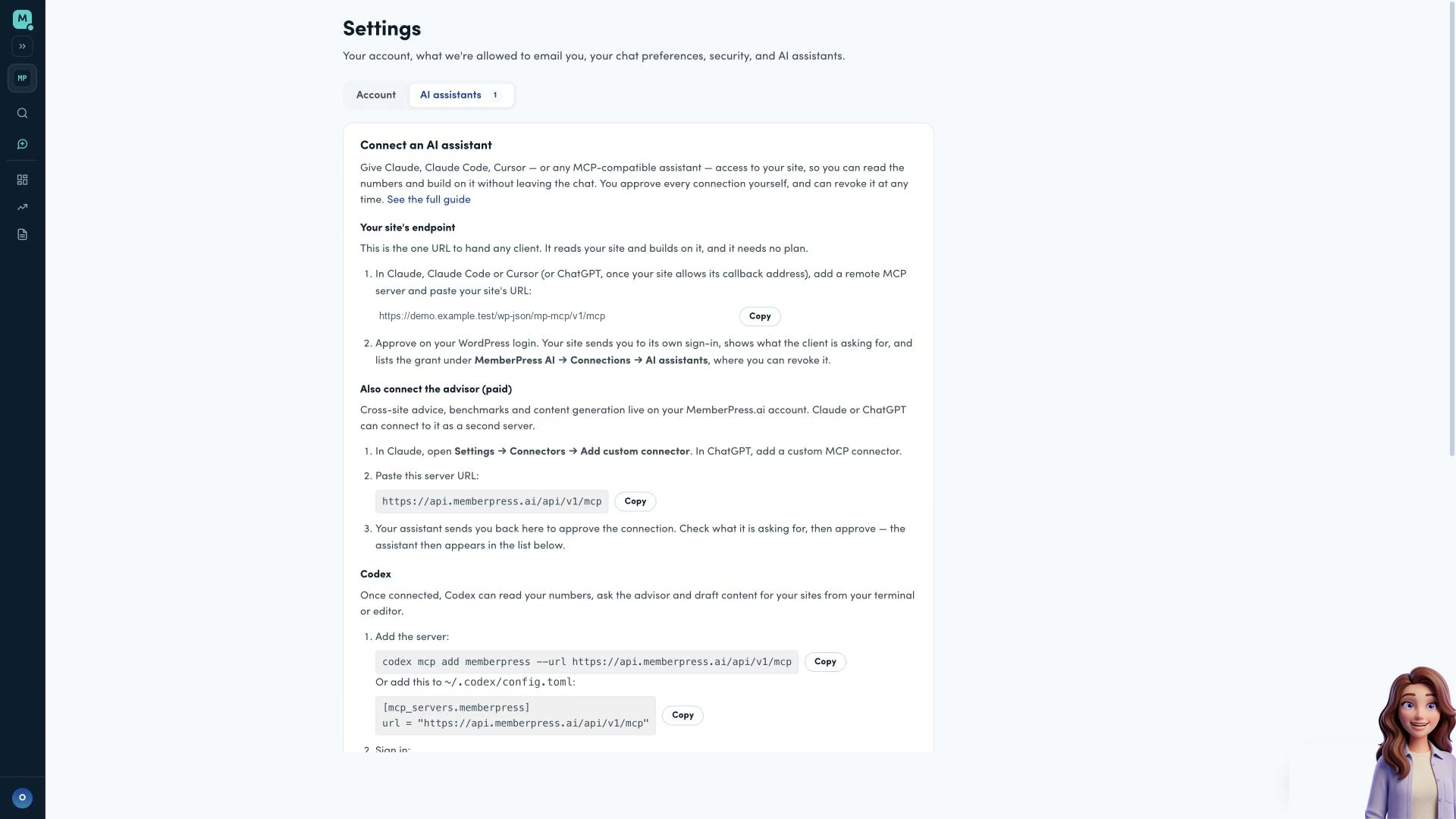
- In the MemberPress.ai app, open Settings → AI assistants. Under
Your site’s endpoint, copy your site’s URL. It’s on your own domain and
ends in
/wp-json/mp-mcp/v1/mcp. You can also copy it in wp-admin under MemberPress AI > AI agents > Your assistants. - Add that URL in Claude. The steps depend on which Claude you use:
- claude.ai or Claude Desktop: open Customize → Connectors, choose + Add → Add custom connector, give it a name, and paste the URL into the server URL box.
- Claude Code: in your terminal, run
claude mcp add --transport http memberpress-ai <URL>, with your URL in place of<URL>. Then type/mcpinside Claude Code to sign in.
- Claude sends you to your own site to approve. You sign in to WordPress as yourself, see what Claude is asking for, and approve.
- The connection is listed in wp-admin under MemberPress AI > AI agents > Your assistants, where you can revoke it.
Also connect the advisor
The advisor lives on your MemberPress.ai account: cross-site advice, benchmarks and content generation. It needs the paid plan.
- In the MemberPress.ai app, open Settings → AI assistants and find
Also connect the advisor. Copy the server URL shown there; it ends in
/api/v1/mcp. - Add that URL in Claude, the same way as your site’s: in claude.ai or Claude
Desktop, add a custom connector and paste it. In Claude Code, run
claude mcp add --transport http memberpress-ai-advisor <URL>with the advisor URL in place of<URL>, then type/mcpto sign in. - Claude sends you back to MemberPress.ai to approve. The screen names Claude, the sites it will have access to, and each thing it is asking to do. Most things start ticked. Buy credits, or a month of Pro starts unticked; tick it only if you want it. Untick what you don’t want, then choose Allow access.
- Claude appears under Connected AI assistants in Settings → AI assistants. Revoke it there whenever you like.
What to ask first
These three go to the advisor in your MemberPress.ai account, which needs the paid plan. If you only connected your site’s own endpoint, ask Claude about your members and courses instead; it can look those up.
- “What’s driving my cancellations, and what should I do about it?”
- “Why did revenue change last month?”
- “Draft a welcome post for new members and put it in my editor.”
Drafts land in your WordPress editor unpublished. See Which changes ask you to confirm for which changes ask for a confirmation.