Connect Grok to MemberPress.ai
Ask Grok about your members and your revenue from your own xAI API requests. You create an access key in MemberPress.ai, choose what Grok may do with it, and add it to your request.
Before you start
- You need the paid plan (Pro). On the free plan, Also connect the advisor (paid) shows Upgrade to Pro instead of the Grok card.
- At least one site connected to MemberPress.ai. If you haven’t connected one yet, start with Connecting your site.
- This connection is for the xAI API. You add MemberPress.ai as a tool in
the
toolslist of your xAI API request. It does not connect the Grok chat app.
Review Grok API access
Open the videoClose the video
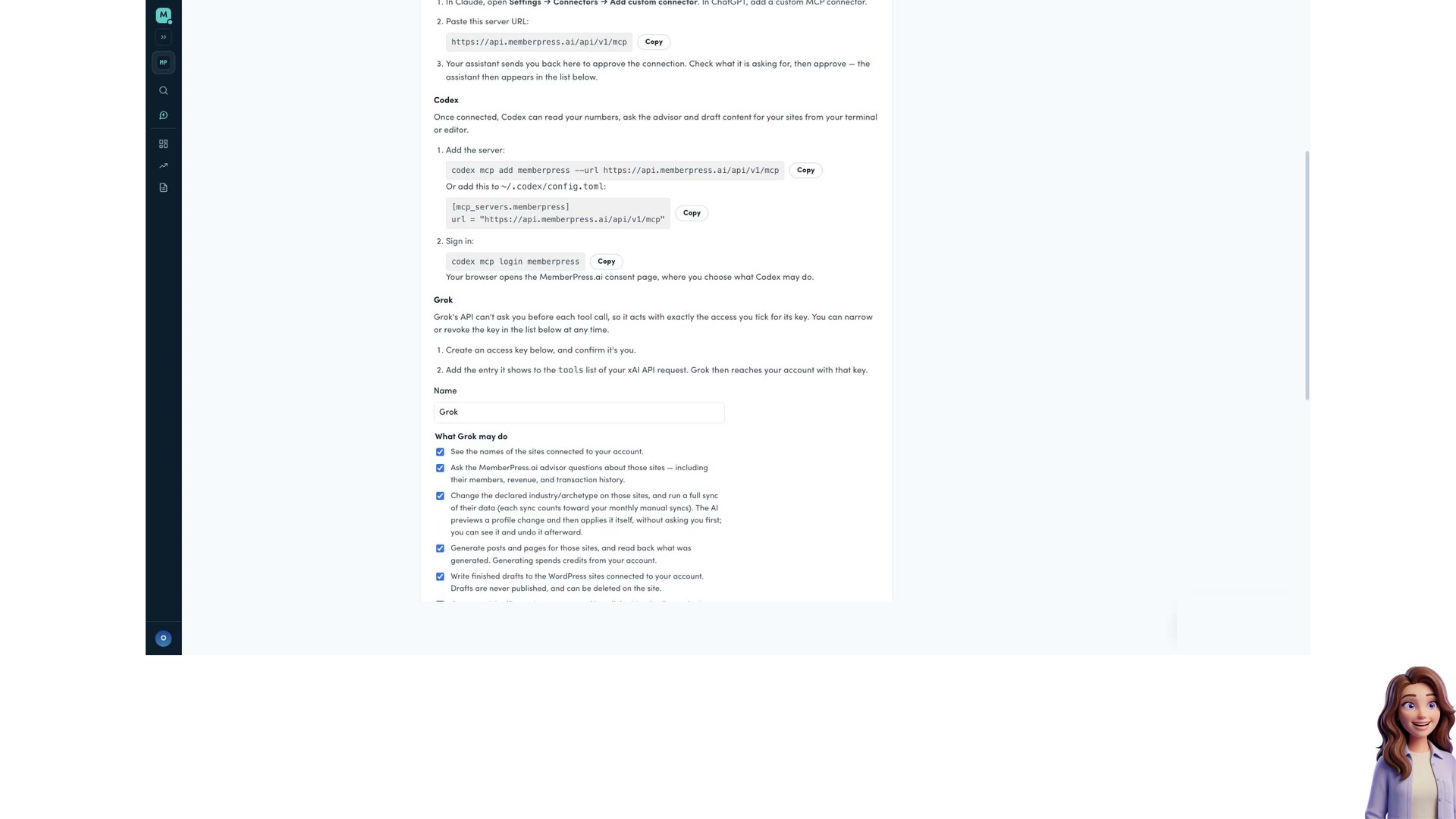
Create an access key
- In the MemberPress.ai app, open Settings → AI assistants.
- Under Also connect the advisor (paid), find Grok and choose Create an access key.
- Fill in the form:
- Name: it starts as “Grok”. This is how the key is listed later.
- What Grok may do: one checkbox for each thing the key allows. Every box but buying starts ticked. Untick what you don’t want. The full list is under What the key can allow.
- Expires after (days): anything from 1 to 90. It starts at 90.
- Your password, to confirm it’s you.
- Choose Create key.
If your account signs in with Google and has no password, the form still shows the password box first. Choose Create key, and the form then replaces the box with a Verify with Google button. Use that instead.
Grok can’t stop to ask you before it uses a tool, so it acts with exactly the access you tick. Choose only what you want it to have.
An account can have at most 10 working access keys at once. To create another, revoke one you no longer use first.
Add the key to your xAI request
-
The key appears once, inside a ready-made tool entry. It looks like this, with the full server URL from the card in place of
https://…/api/v1/mcp:{ "type": "mcp", "server_url": "https://…/api/v1/mcp", "server_label": "memberpress", "authorization": "mi_pat_..." } -
Choose Copy, which copies the whole entry, URL and key included, and save it somewhere safe. It won’t be shown again.
-
Add the entry to the
toolslist of your xAI API request. Grok then reaches your account with that key. -
Choose Done, I’ve saved it. This removes the key from the page, so save it first.
What the key can allow
Each of these is one checkbox on the form:
- See the names of the sites connected to your account.
- Ask the MemberPress.ai advisor questions about those sites, including their members, revenue, and transaction history.
- Change the declared industry or business type on those sites, and run a full sync of their data. Each sync counts toward your monthly manual syncs. Grok previews a profile change and then applies it itself, without asking you first. You can see it and undo it afterward.
- Generate posts and pages for those sites, and read back what was generated. Generating spends credits from your account.
- Write finished drafts to the WordPress sites connected to your account. Drafts are never published, and can be deleted on the site.
- Connect a WordPress site you own. You approve the connection on your own site with your own WordPress login, and the one-time access it uses is removed as soon as the connection finishes, whether or not it succeeded.
- Set up a site you have just connected: create its membership levels and put them on sale. This is for the first setup only. Grok previews what it will create and then creates it itself, without asking you first. You see what it did afterward in the key’s activity, and levels it put on sale are not undone from there. Everything after setup is drafted for your review.
- Buy credits, or a month of Pro, with a card you choose to share with it. Nothing is charged until you confirm the exact price yourself. This box starts unticked. See Agent payments for how buying works.
Change or revoke the key
Your key is listed under Connected AI assistants in Settings → AI assistants, by the name you gave it, with an Access key tag.
- Change access lets you untick things the key may do. A key can only be narrowed there. For more access, create a new key.
- Revoke turns the key off for good.
- When a key expires it stops working, and you can Remove it from the list.
- Resetting your password also revokes your access keys. Create a new one afterwards.
What to ask first
Grok reaches the advisor in your MemberPress.ai account. Try:
- “What’s driving my cancellations, and what should I do about it?”
- “Why did revenue change last month?”
- “Draft a welcome post for new members and put it in my editor.”
Drafts land in your WordPress editor unpublished. See Which changes ask you to confirm for which changes ask for a confirmation.