List your memberships for AI agents in your own Stripe account
When someone asks an AI assistant for a pottery course or a coaching group, you want it to find yours, describe it properly and send that person to your site. Stripe’s agentic commerce does that from your own Stripe account. You give Stripe a list of your memberships, and the AI agents you choose can read it.
Everything on this page happens in your own Stripe Dashboard, and you do it yourself.
What a listing does, and what it doesn’t
- Agents can find and describe your memberships. Nobody pays inside the agent. Each membership is listed as discovery-only. The agent sends the visitor to your membership’s signup page, and they join through your normal MemberPress checkout.
- The price you list is the membership’s regular price for each billing period. For a $35 a month course, that is
35.00 USD. Free trials and intro offers count as sales information, so they stay off the feed; your signup page shows them. - Your memberships renew the normal way. Because nobody pays inside the agent, the person signs up on your site, and the membership renews the normal way on your site, like any other member’s.
This isn’t the same as agent payments, a separate feature that works in Stripe test mode only. There, an AI agent buys the membership itself, and for a recurring membership the approval covers the first payment only.
Before you start
You need:
- A Stripe account you can sign in to.
- A public page for each of your policies: your refund policy page, your terms of service page and your privacy policy page. Agents show these to people, so they must be your own pages, on your own site.
- The signup page link for each membership you want to list.
1. Turn on agentic commerce
In your Stripe Dashboard, go to Settings > Payments > Agentic commerce. Set this up in your live Stripe account, not a sandbox or test mode: that’s the account your listings go out from. You can try the feed upload in a sandbox first. Stripe walks you through a short setup guide.
Stripe asks you to accept its agentic commerce terms before your listings go live. Read them and accept them yourself: they are an agreement between you and Stripe.
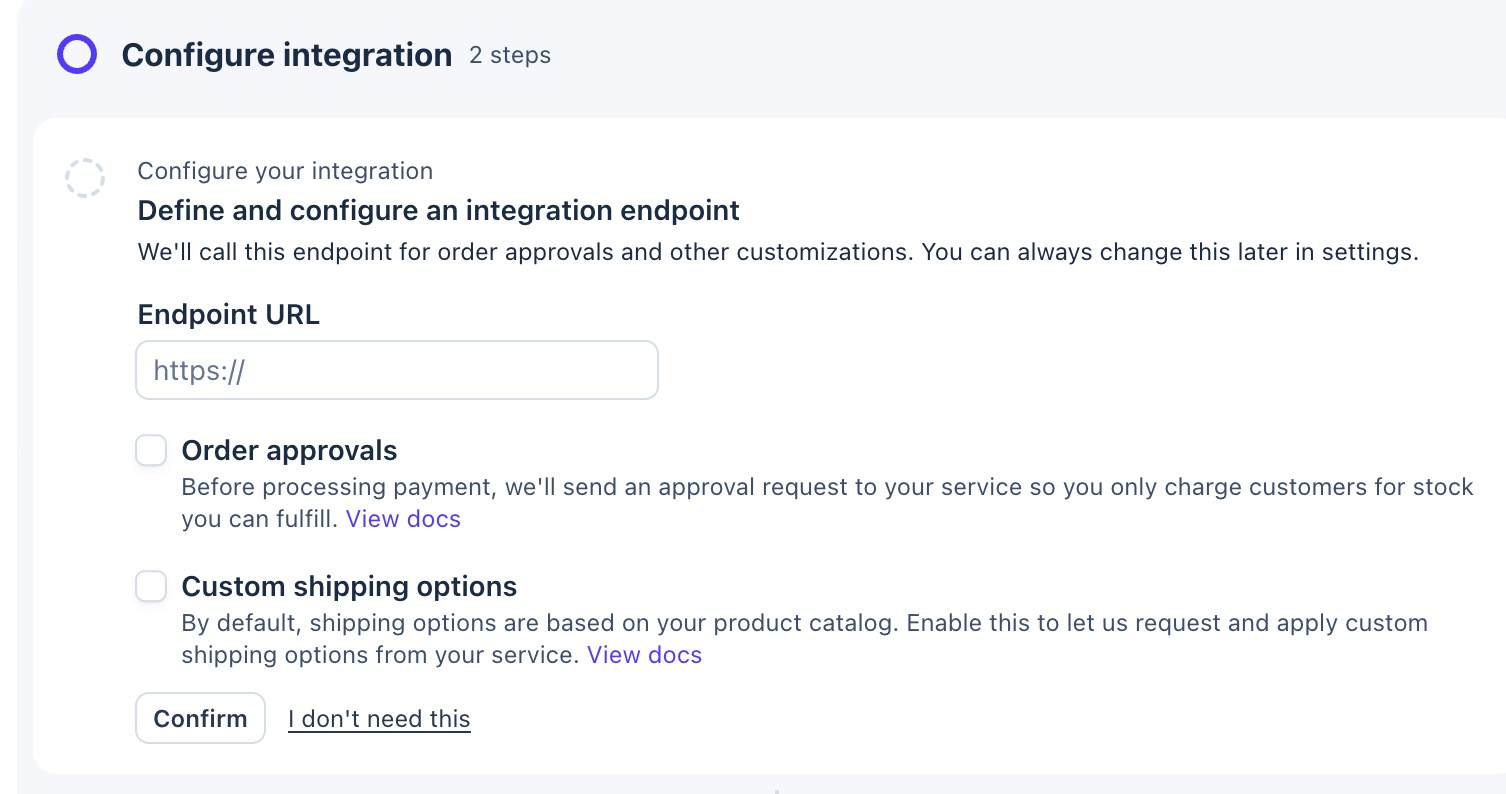
When the guide reaches Configure integration, leave Endpoint URL blank and click I don’t need this. That box is only for purchases made inside an agent, and your listings send people to your site instead.
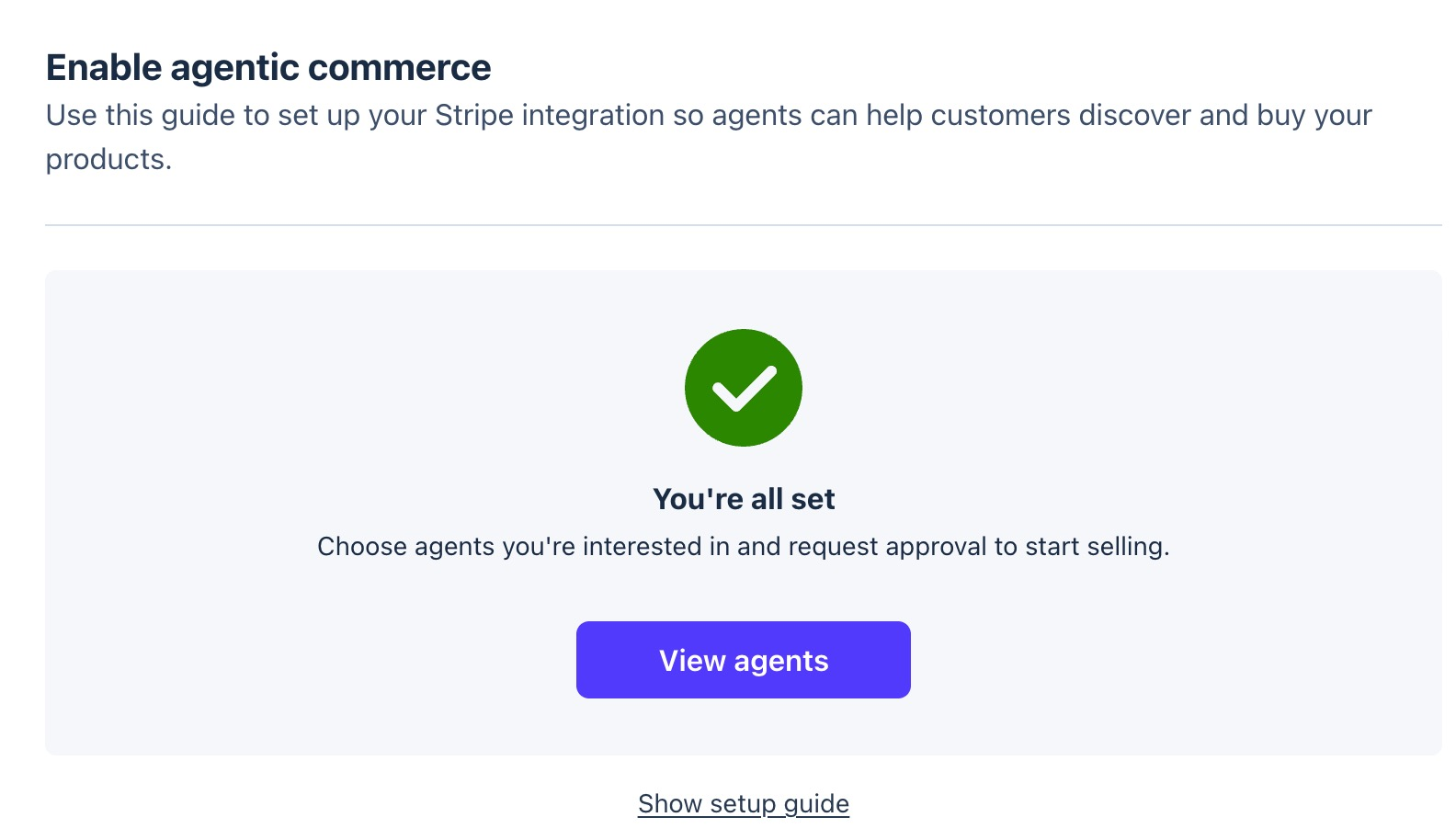
When the guide is done, it says You’re all set.
2. Check the settings and add your policies
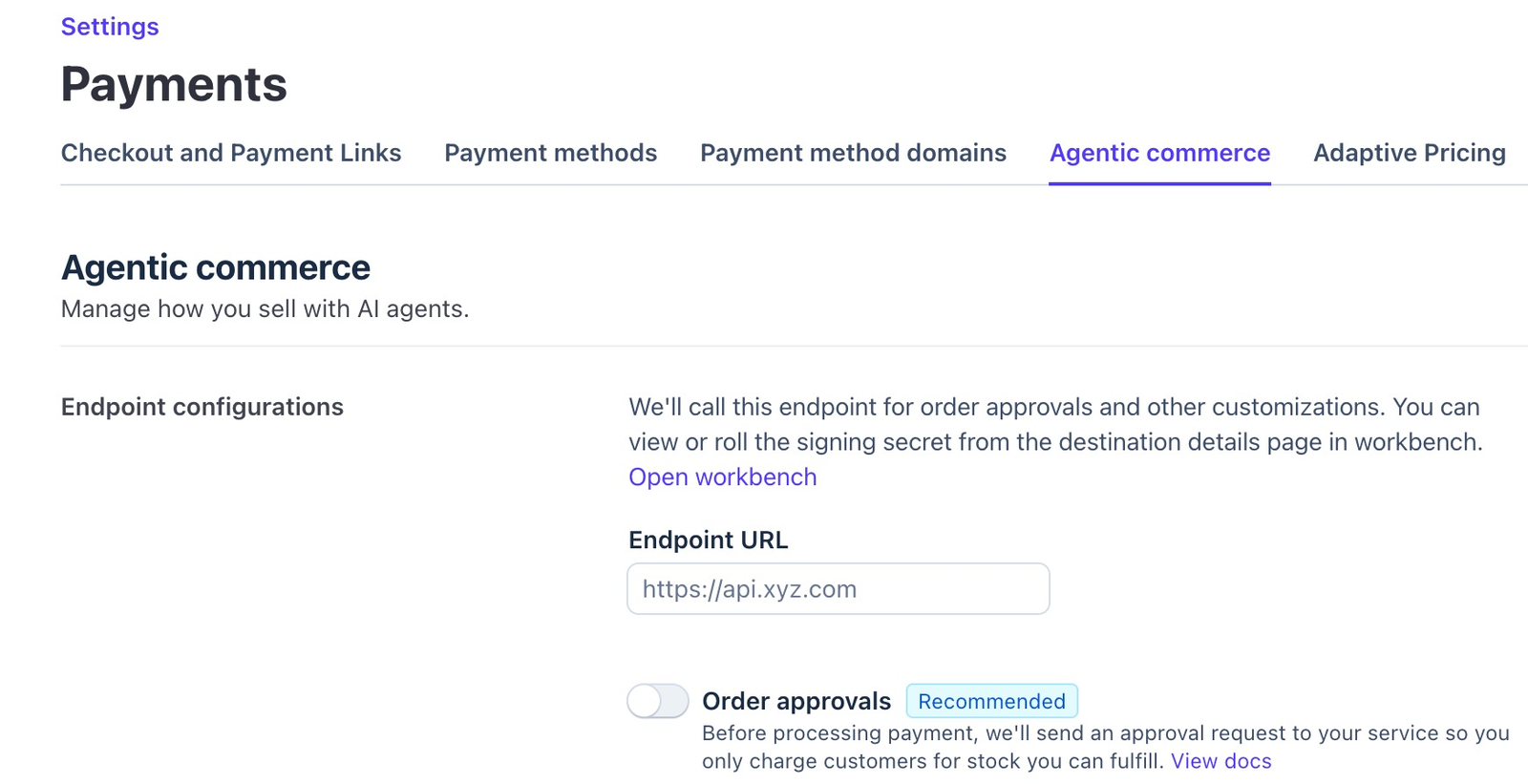
Open Settings > Payments > Agentic commerce again. At the top, under Endpoint configurations, leave Endpoint URL blank and Order approvals off.
Further down, under Policies, fill in:
- Refund and return policy: your refund policy page.
- Terms of service: your terms of service page.
- Privacy policy: your privacy policy page.
- Store policy: optional. Leave it blank if you don’t have one.
The same page has tax settings. Those are your call: check with your accountant or Stripe’s own tax guide before you change them.
3. Make your product feed
The product feed is a spreadsheet saved as a CSV file, with one row per membership. Agents read it to learn what you sell.
Give it these columns:
id: A short name that never changes, likepottery_monthly.mpn: Your membership’s own id, the same value asid. Stripe asks for a manufacturer part number when a product has no barcode (gtin), and you made the membership, so its id is yours to give.title: The membership’s name with its billing period, likeGold Membership (monthly), so agents show the period next to the price. You can also use Stripe’s optionalcustom_variant_option_name_1column set toBilling periodandcustom_variant_option_value_1set toMonthlyinstead.description: A few plain sentences about what a member gets, in plain product terms. Stripe’s feed rules ask you to leave out sales information such as prices and offers: the price goes inprice, and your signup page shows the full terms.link: The membership’s signup page on your site.image_link: A public link to a JPEG or PNG image for the membership, at least 800 × 800 pixels, with no text over it.brand: Your business name.price: The membership’s regular price for each billing period, as your signup page charges it, written as the number and the currency code, like35.00 USD.product_category: A category path with>between the levels, likeEducation > Online Courses. You can give Stripe’sgoogle_product_categoryinstead.availability:in_stockwhile the membership is open for signups. If you close it, upload a row for it withdeleteset totrue(see Stop listing a membership below) or set this toout_of_stock.inventory_not_tracked:trueinventory_quantity: Leave blank.disable_checkout:true. This keeps the listing discovery-only, so people join on your site.
To upload it, open Agentic commerce > Feed history and upload your CSV. When Stripe has read it, the Agents tab says Your product feed is ready, with the number of records it found.
When a membership’s price or name changes, update its row and upload the file again. Stripe doesn’t see changes on your site by itself. Keep disable_checkout set to true on every row, every time you upload. Without it, an agent could charge a buyer on your Stripe account, and because nothing on your site receives that sale, MemberPress wouldn’t create a membership for them.
4. Try it with the Test Agent
The Agents tab lists the AI agents that can show your memberships. Every one starts as Disabled.
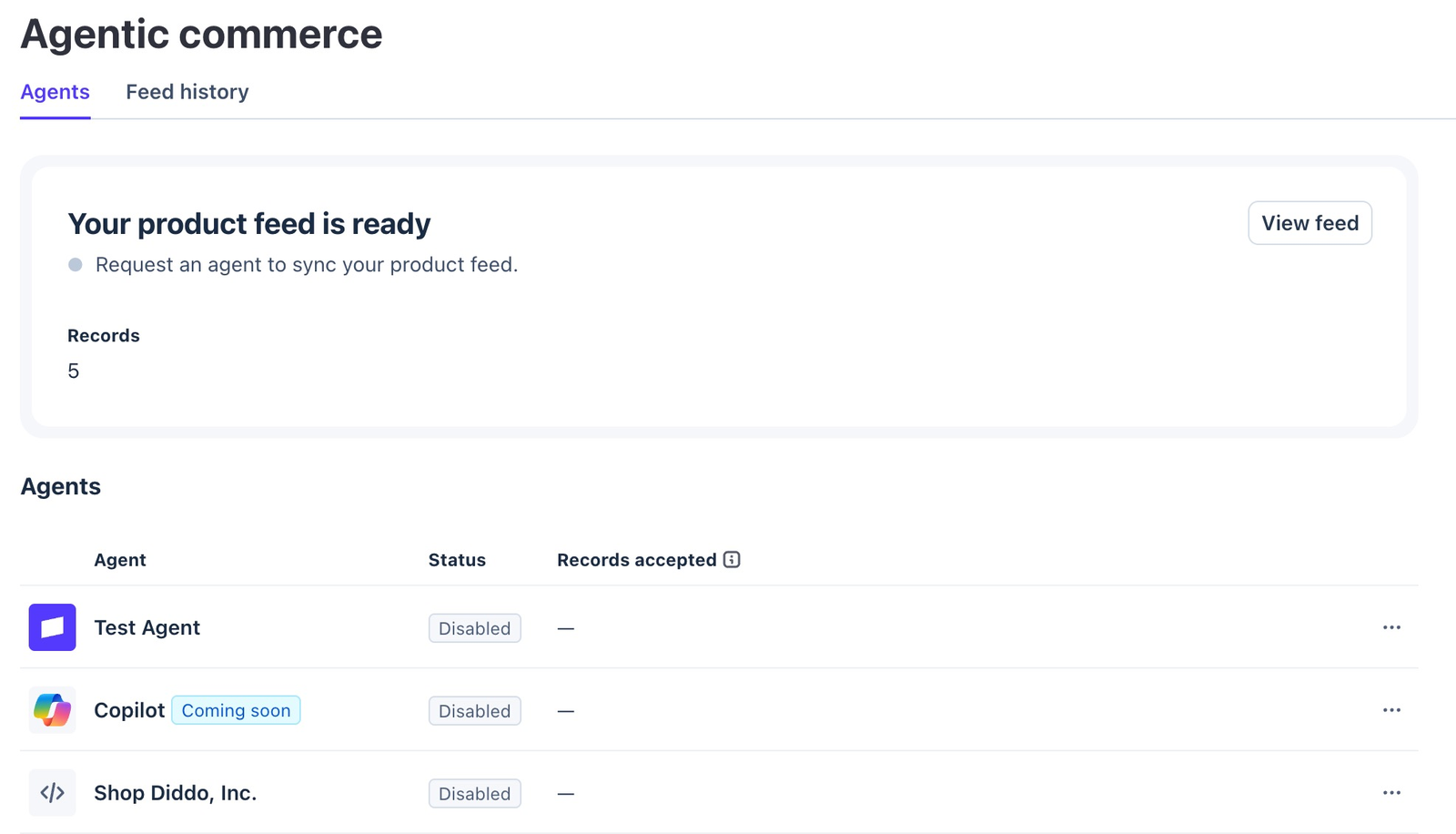
Turn on Test Agent first, from its row in the list. It lets you check that your memberships show up and that the links land on the right signup pages.

5. Request the agents you want
Pick the agents that fit your members. Some are shopping assistants for clothes or other goods, so skip the ones that don’t suit a membership. Stripe marks the agents that can’t be requested yet.
Request each one from its row. Requesting an agent means agreeing to that agent’s terms, so read them first. Then wait for the request to be approved: the agent’s status changes in the list when it is.
Stop listing a membership
To stop listing one membership, upload a CSV with a row for it. Do this when you close a membership, so agents don’t send people to a signup page that no longer sells it. Stripe’s feed rules say a row with the membership’s id and a delete column set to true removes that listing; Stripe ignores the other columns in that row. In Stripe’s default mode, an upload only adds or updates rows, so leaving a row out of your next upload doesn’t remove it.
To stop listing everything, go to Settings > Payments > Agentic commerce and click Deactivate agentic commerce at the bottom of the page.
What stays on your site
A visitor who comes from an agent joins the same way as anyone else: your signup page, your MemberPress checkout, your emails. Your members, your prices and your payments all stay in your own MemberPress and your own Stripe account.