Review Codex setup for MemberPress.ai
Before you start
- You need the paid plan (Pro). On the free plan, Also connect the advisor (paid) shows Upgrade to Pro instead of the Codex controls.
- You need at least one site connected to MemberPress.ai. If you haven’t connected one yet, start with Connecting your site.
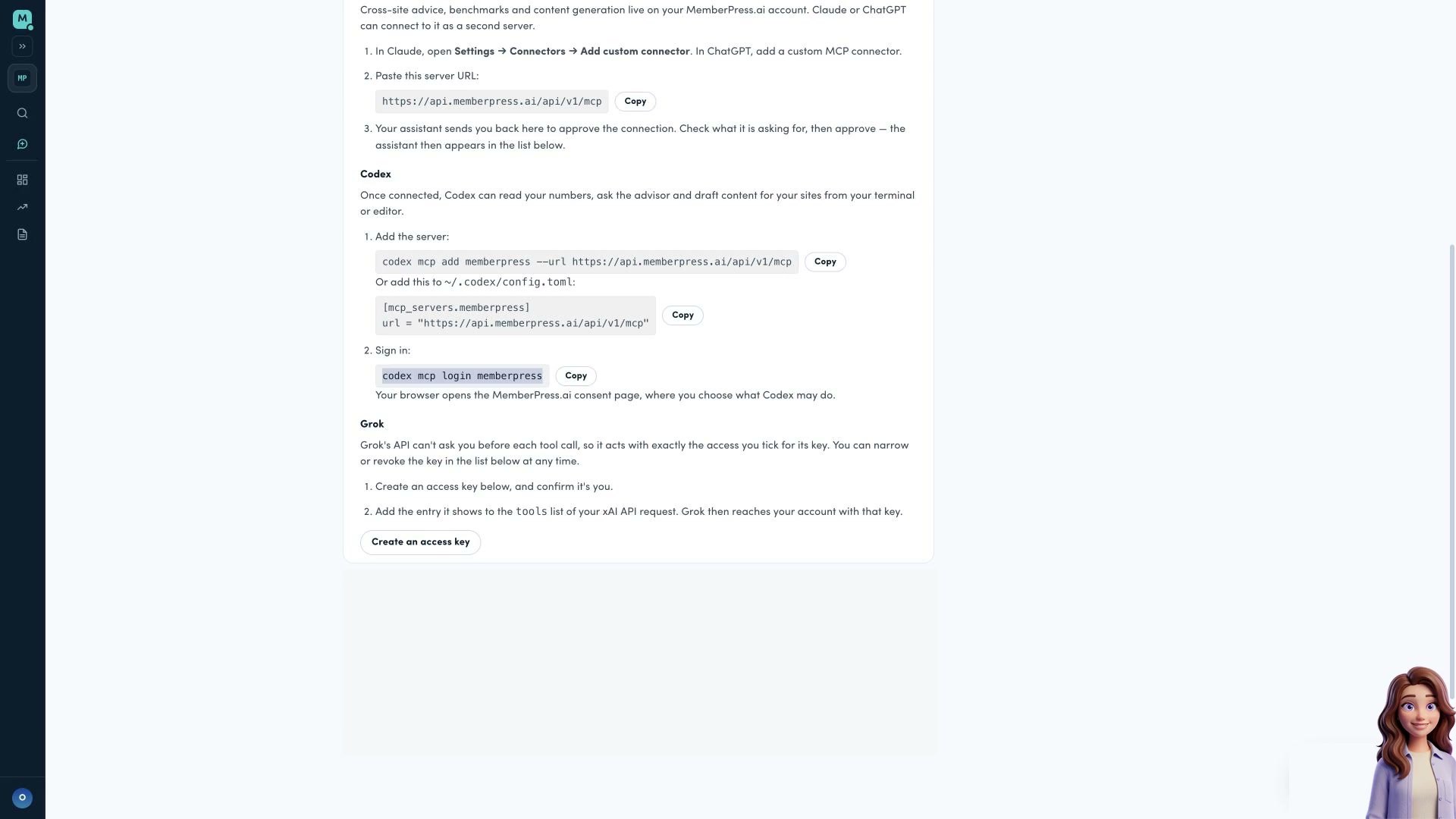
Open Settings → AI assistants in the MemberPress.ai app and find Codex under Also connect the advisor (paid). This is the advisor on your MemberPress.ai account. For your WordPress site’s own endpoint, see Using your own AI client.
Review Codex setup
Open the videoClose the video
Add the advisor server
The app shows this command:
codex mcp add memberpress --url https://api.memberpress.ai/api/v1/mcpThe configuration block shown beside it is an alternative to that command. Add it to ~/.codex/config.toml:
[mcp_servers.memberpress]
url = "https://api.memberpress.ai/api/v1/mcp"
Use a server name that does not replace a connection you already rely on. If you choose a different name, use that same name for login.
Review access before signing in
The app’s next command is:
codex mcp login memberpressThe app says this opens your browser at the MemberPress.ai consent page, where you choose what Codex may do. Read those permissions before approving. Return to Settings → AI assistants to manage the connection afterward.
This walkthrough reviews the commands displayed by the app. It does not execute them, complete sign-in, grant access or verify a Codex tool call.